Small events usually go wrong at the door: a queue behind one pen, a QR code nobody’s phone will read, a silent room before the start. This guide is for anyone running a workshop, open house, club meeting, pop-up or community evening for ten to two hundred people, with no budget for event software.
You’ll set up check-in that works on paper and on phones, print QR codes that scan the first time, put a welcome loop with quiet music on screen, keep talks on time and send a follow-up. Every tool below runs in your browser, so names and files stay on your device.
What you’ll need
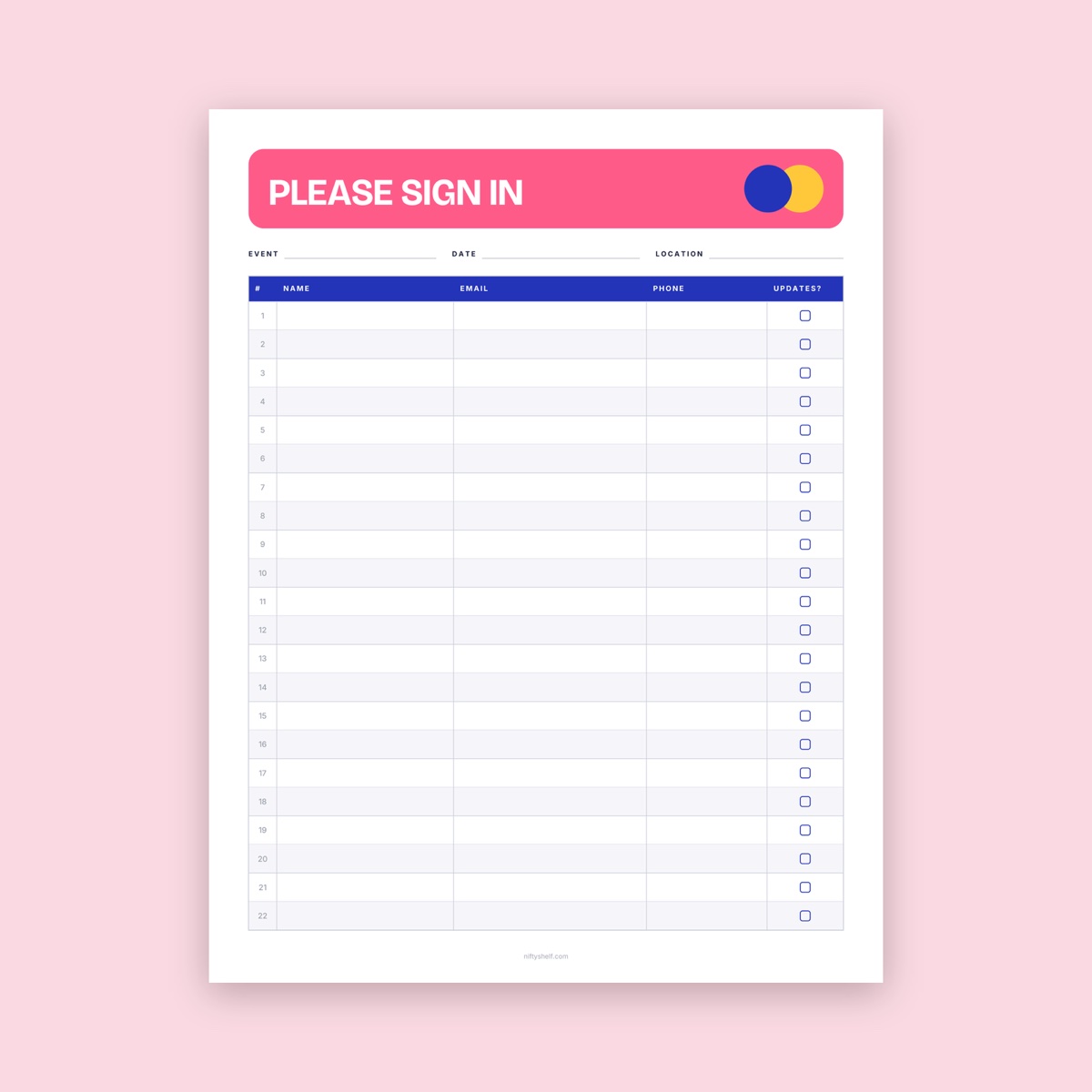
- A sign-in sheet: Event Sign-In Sheet, Open House Sign-In Sheet or Visitor Sign-In Log
- QR Code Generator and two different phones for testing
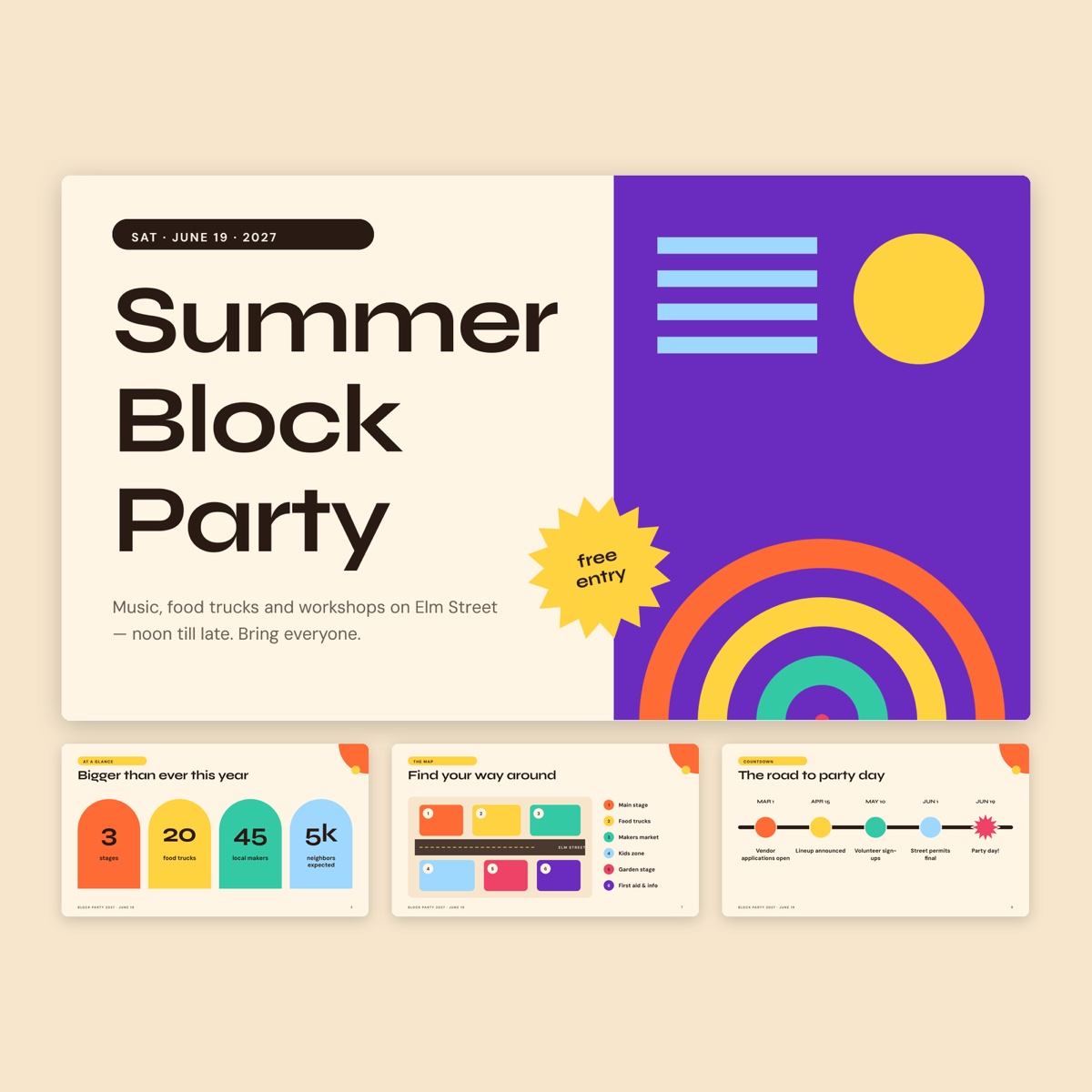
- The Block Party Event Deck or your own slides, plus a screen
- A few tracks from the café or jazz shelves
- Online Stopwatch & Timer and, for a raffle, Spin the Wheel
1. Paper, QR or both
Paper is fast and works for every age group, but handwriting can be unreadable and everyone in line sees the entries above theirs. QR check-in to an online form gives you clean, typed data, but some guests will have a dead phone, no signal in a basement hall, or no wish to scan anything.
For most small events, use both: the QR code as the main route and a paper sheet on a clipboard as backup. The person at the table says, “Scan this, or write your name here if that’s easier,” and nobody feels stuck.
Pick the sheet that fits:
- Event Sign-In Sheet: name, email, phone and an “updates?” checkbox. Type the event, date and location in with Fill PDF Form before printing.
- Open House Sign-In Sheet: name, phone, email and quick Y/N circles for property viewings.
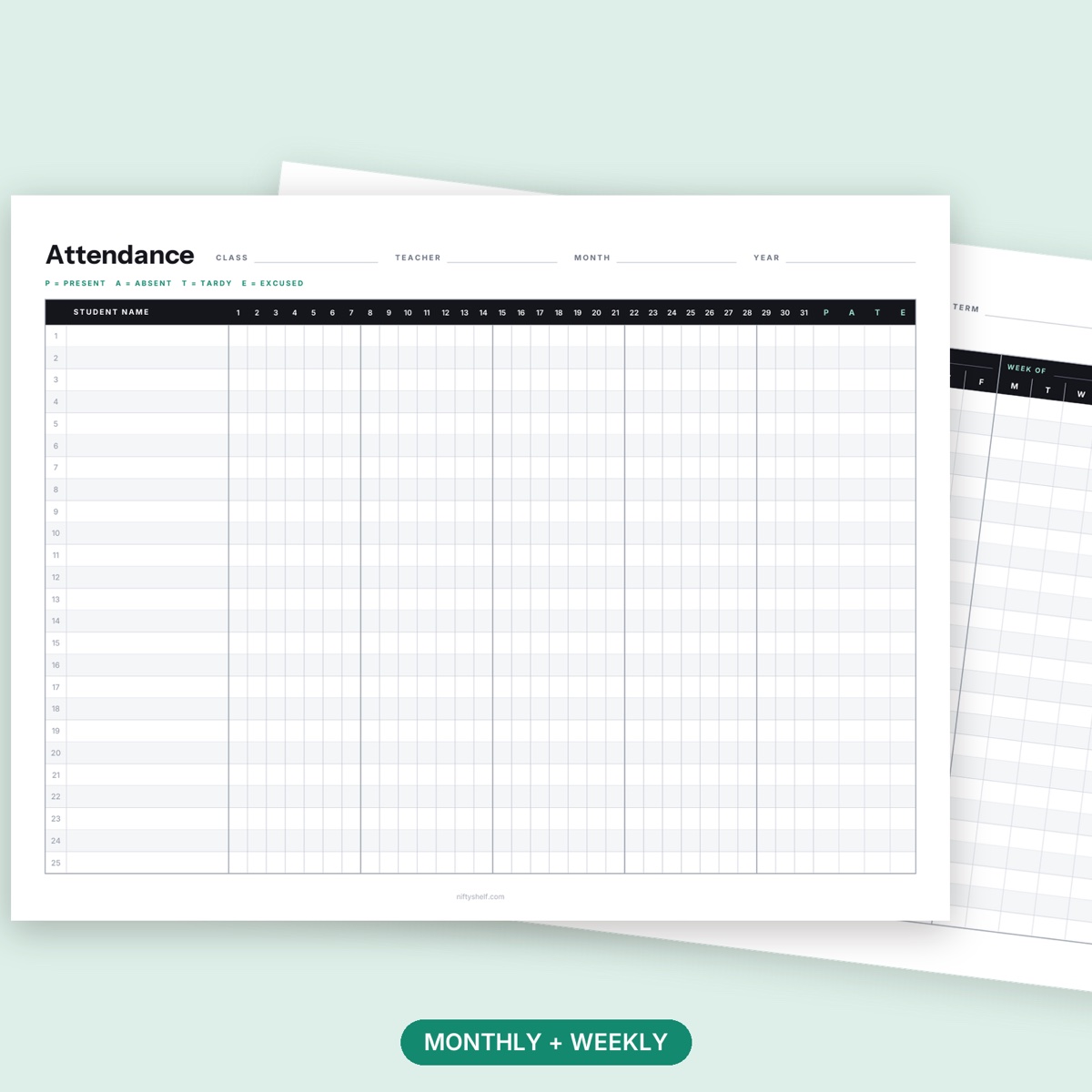
- Visitor Sign-In Log: time in and out, who they’re visiting and a badge number. Use it in offices, schools and clinics, where you need to know who is still in the building.
2. Collect only what you need
Skip every column you won’t use. If you’ll never call anyone, don’t ask for phone numbers. If the only follow-up is one thank-you email, name and email are enough. Less data means less to protect and a faster queue.
- Respect the checkbox. Only email people who ticked “updates?”.
- Hide earlier entries. Swap in a fresh sheet when one fills up and keep full sheets in a folder, not on the table.
- Say what it’s for. Add one line such as “We use this to send today’s slides. Nothing else.” with Edit PDF.
- Decide when it goes. Type what you need into your spreadsheet within a week, then shred the paper. Privacy rules differ by country, so check what applies if you run events often.
3. Make a QR code that scans the first time
- Shorten the link. Every extra character adds dots, and more dots means each dot prints smaller. Remove tracking text after a ”?” if the link works without it. Better still, point the code at a page you control, like your club’s events page, and put the form link there. Our codes are static and never expire, but they can’t be changed once printed; a link on your own page can be updated the night before without reprinting.
- Keep it dark on light. In the QR Code Generator, choose URL, paste the link and keep a dark code on a white background. If you try brand colors, the tool warns when contrast is too low.
- Leave the margin at 4. The margin setting (0, 2, 4 or 6) is the quiet zone, the empty border scanners use to find the code. Margin 0 on a colored flyer is the classic way to make a code unreadable.
- Error correction: Medium is fine. Choose Quartile or High only if the code will be laminated, folded or partly covered; the code gets denser.
- Pick the file. SVG stays sharp at any print size. PNG suits slides and documents; set the size slider to 1024 px or more for print.
How big? A practical rule of thumb: about 2 cm (0.8 in) square is the smallest that scans reliably at arm’s length, on a table card or handout. Farther away, make the code roughly one tenth of the scanning distance: about 15 cm for a poster read from 1.5 m, about 30 cm for one scanned from 3 m.
Test on two phones. Print one copy at real size, put it where it will hang and scan it with two different phones, ideally one older model, from where guests will stand and under the venue’s lighting. Glossy laminate under ceiling lights can blind the camera, so tilt it or use matte. Then submit a test entry: a code that opens a broken form doesn’t help anyone.
4. Put codes where people stop
People scan when they’re standing still, not while walking in.
- Welcome table: a small folded card, 5 to 8 cm wide, next to the paper sheet.
- Along the queue: a poster at eye level, about 1.2 to 1.5 m up, so people can scan before reaching the table.
- On screen: one slide of your welcome loop (see below).
- On the sheet itself: add the PNG to a corner with Edit PDF, so the clipboard offers both options.
Have guest Wi-Fi? The generator’s Wi-Fi mode lets guests join with one scan. Only use it for a guest network, and put it on its own labeled card so nobody scans it expecting the sign-in form.
5. Loop slides with background music before the start
A looping deck makes waiting feel shorter and answers questions before anyone asks.
The Block Party Event Deck already has a schedule, lineup, simple venue map, countdown timeline, sponsor wall and FAQ. Keep six to eight slides: welcome, schedule, check-in QR code, Wi-Fi, house notes (restrooms, exits, photo policy) and “starting at 7:00”. In your presentation app, set slides to advance every 8 to 10 seconds and loop. Give the QR slide twice as long, because people need time to find their phone.
For music, pick calm instrumentals from café, jazz or chill and line up 20 to 30 minutes so nothing repeats during arrivals. Keep it low enough that two people beside the speaker can talk normally. Trim Audio can add a fade out to a track that ends abruptly. Put the credit line on your last slide. When you begin, just stop the music: the sudden quiet gets attention better than tapping a microphone.
If some of your audience joins online, the live stream and online class guide covers the camera and waiting-screen side.
6. Keep talks on time
Open the Timer in Online Stopwatch & Timer on a laptop or tablet the speaker can see, not just you. Presets from 1 to 60 minutes save typing between speakers. When time is up it beeps and the tab title flashes, and it stays accurate while the slides run in another tab. Check the volume first: a beep that suits a classroom can startle a quiet chapel.
For open mics or lightning talks, use the Stopwatch’s Lap button to record each speaker’s actual time.
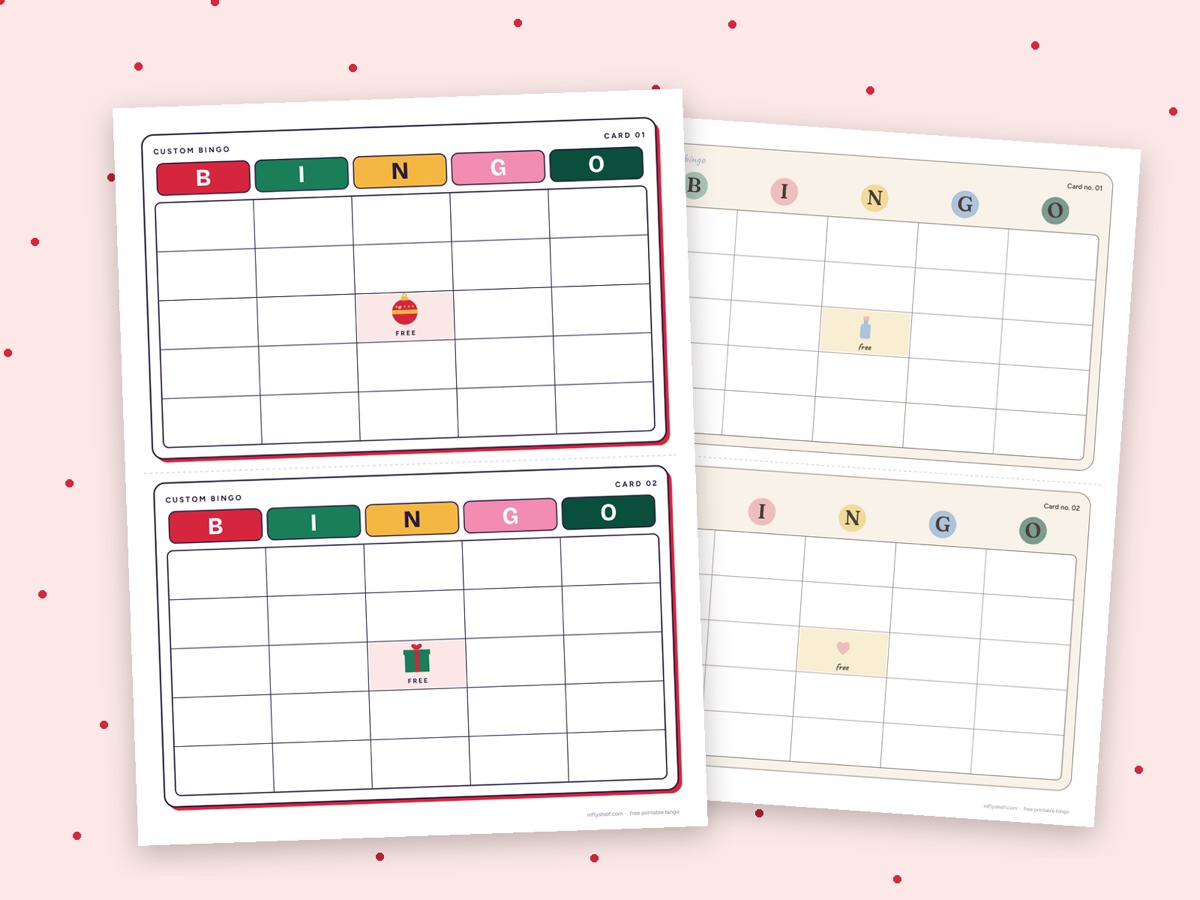
For a door-prize raffle, type ticket numbers or first names into Spin the Wheel, one per line, and turn on “Remove winner after each spin” so nobody wins twice. The list is saved in your browser, so clear it afterwards on a shared laptop. Bingo nights can use the Classic Number Bingo Cards, which include a caller board.
7. Follow up within two days
Interest fades fast, so send the follow-up within 48 hours, only to people who agreed.
- One attachment, not five. Export your slides to PDF and combine them with any handout in Merge PDF.
- A thank-you image. Add “Thanks for coming! Next meetup: 12 March” to your best room photo with Add Text to Image. Ask before posting recognizable faces.
- The next date and one link. If the QR code points at your own page, reuse it for the next event.
Common mistakes
- A QR code under 2 cm, or margin 0 on a colored background
- Testing only on your own phone, at your desk, on a screen instead of paper
- A long form link full of tracking text, making the code dense and fragile
- Full sign-in sheets left face up on the table
- Asking for phone numbers and addresses you’ll never use
- Music loud enough that people lean in to hear each other
- A timer only the organizer can see
FAQ
What size should a printed QR code be?
As a rule of thumb, at least 2 cm (0.8 in) for close-up scanning, and about one tenth of the scanning distance for posters. Always print a test copy and scan it from where guests will stand.
Do the QR codes expire or track scans?
No. They’re static codes that hold your link directly, so they work as long as the link does, and nothing records scans.
Paper sign-in sheet or QR check-in?
Both, for most small events. QR gives you typed, readable entries; paper catches anyone without a working phone or the wish to scan.
Can I use NiftyShelf music at an event?
Our tracks are free for personal and commercial use. We ask for a credit, such as “Music: NiftyShelf (niftyshelf.com)” on a slide. Full terms are on the license page.