A photo slideshow is often the moment the room goes quiet: at a wedding reception, a parents’ fortieth anniversary, a grandmother’s ninetieth birthday or a memorial. What makes it work is a few small decisions: which photos, how long each stays on screen, and whether the music lifts at the right moment.
This guide covers what is specific to photo slideshows. For the editor’s buttons and panels, see how to edit videos online with NiftyCut; for trimming and crediting tracks, see how to pick and trim background music.
What you’ll need
- A computer with a recent Chrome or Edge, so NiftyCut can export MP4
- The photos, gathered at least two weeks before the event
- Two USB sticks for the venue
1. Decide the length before you collect photos
Most people collect first and end up with 300 photos and a twenty-minute video nobody can sit through. Work backwards. At a wedding reception, five to eight minutes is about as long as guests stay with you. For a memorial, six to ten minutes is plenty. A birthday or anniversary party is happiest at four to six minutes, usually two songs.
Then let the music set your photo budget. In 4/4 time, one bar lasts 60 ÷ BPM × 4 seconds. Holding each photo for two bars feels unhurried without dragging, which gives a simple rule: photos per minute = BPM ÷ 8.
| Track | BPM | Length | One bar | Two bars | Photos at two bars each |
|---|---|---|---|---|---|
| Felt Piano Letters | 70 | 2:58 | 3.43 s | 6.86 s | about 25 |
| Lux Aeterna | 72 | 3:58 | 3.33 s | 6.67 s | about 35 |
| Endless Horizon | 80 | 3:20 | 3.00 s | 6.00 s | about 33 |
| Dim Whiskey Bar | 85 | 3:28 | 2.82 s | 5.65 s | about 36 |
| Misty Green Hills | 88 | 3:08 | 2.73 s | 5.45 s | about 34 |
| Island Town Afternoon | 95 | 2:13 | 2.53 s | 5.05 s | about 26 |
| Amber Leaf Swing | 120 | 3:13 | 2.00 s | 4.00 s | about 48 |
So a two-song wedding slideshow of Felt Piano Letters followed by Endless Horizon runs 6:18 and holds about 58 photos. Keep two or three slots for title cards and your target is roughly 55 strong photos, not 200 good ones. For a memorial, consider three or four bars per photo; faces need time, and so do the people watching.
2. Gather the photos and convert iPhone files
Ask relatives early, give them a firm deadline and one shared folder, and ask for original files. Forwarded copies and screenshots look soft on a big screen.
For old prints, lay each one flat near a window in daylight, hold the phone parallel and turn the flash off to avoid glare. Crop the table edge away later.
iPhone photos often arrive as HEIC. Drop the whole batch into HEIC to JPG and download one ZIP. Then put a number or year at the front of each file name, such as 1988-03-beach.jpg, so they import in story order.
Phone photos are often 4,000 pixels wide or more, and NiftyCut keeps projects in this browser’s storage. Run the set through Compress Image with the maximum size at 2560 px and quality around 80%. That stays sharp at 1080p, leaves room for NiftyCut’s gentle zoom and keeps the project light.
3. Crop for a 16:9 screen
Venue screens and TVs are almost always 16:9, but ask. When a photo doesn’t match, NiftyCut’s default Fill frame setting crops from the center, which can cut the tops of heads in group shots. For photos that matter, frame them yourself in Crop Image locked to 16:9, and leave space around faces because the automatic zoom-in trims the edges slightly.
Don’t crop a vertical phone photo to 16:9; you’d lose most of it. Select it in NiftyCut and set Fit to Fit + blurred bg, which shows the whole photo over a soft blurred copy. Or place two vertical photos side by side in Collage Maker at 16:9: it looks deliberate and uses one slot instead of two.
For a scan with odd dimensions, Aspect Ratio Calculator gives the 16:9 size at the same width (3000 × 2000 becomes 3000 × 1688), and Resize Image handles a single file that’s too large.
4. Choose music by mood and moment
Pick the feeling first, then the track.
- Growing-up photos and parent thank-you videos: Felt Piano Letters. Soft felt piano and warm cello, with strings rising late. Save your most important photo for that rise.
- The couple’s story, or the finale: Endless Horizon. It builds for over three minutes, so first-meeting photos sit in the quiet opening and the proposal lands at the peak.
- A formal, elegant opening: L’Éveil de l’Histoire. Graceful chamber strings and harpsichord at 73 BPM, about 3.3 seconds a bar, under a names-and-date card.
- Anniversaries and grandparents’ black-and-white photos: Amber Leaf Swing. A bittersweet 1950s-style piano trio. At 120 BPM, two bars is exactly four seconds, the length NiftyCut gives every new photo.
- The dating years: Dim Whiskey Bar. A mellow, candlelit jazz trio with lyrical piano.
- Family reunions and road trips: Misty Green Hills. Warm Celtic folk whose melodies tend to close every eight bars, about 22 seconds: a natural chapter.
- Children’s birthdays: Island Town Afternoon. Kalimba, ukulele and marimba, cheerful without being loud.
- Memorials: Lux Aeterna. A hushed soprano growing into a full choir. The start and the ending differ a lot in volume, so check it at the venue.
- Guests arriving: Golden Hour Bossa, a warm nylon-guitar bossa nova for a looping photo reel.
5. Shape the photos to the music
Listen once without looking at anything and note where the track is quiet, where it lifts and where it lands. Order the photos chronologically, then move the strongest ones onto those lifts: the whole family in one frame, the first dance, the last photo of someone you’ve lost. Treat each eight-bar section as a small chapter.
In NiftyCut, add all the photos first. They land on the Video track at four seconds each with a gentle zoom-in applied. Then add the music: with photos already on the timeline, the song is cut to the same length with a two-second fade-out, which is why the photo count from step 1 matters. For a second song, move the playhead to the end of the first before pressing Add, because it starts at the playhead.
For two-bar holds at 70 BPM, type 6.86 in each photo’s Length. Rounding adds up over 50 photos, so every tenth photo or so, type its Start from a list (photo 5 starts at 4 × 6.86 = 27.43 s) to stay on the beat.
Choose one transition and keep it. A Crossfade of about one second suits almost every slideshow; save Dip to black for the change between chapters. A transition plays only when two clips touch on the same track.
6. Add titles and captions sparingly
An opening card with names and a date, a few chapter cards (“The early years”, “How we met”) and short captions are enough. “Grandma’s 80th, 2019” helps guests; a paragraph doesn’t. NiftyCut’s Serif title style with a Fade in and out reads well on a big screen; add Outline or a Background box over busy photos. If the same caption will also go on a printed photo board, write it into the image with Add Text to Image.
Keep each caption up for at least four seconds. If you can’t read it aloud twice in that time, it’s too long.
7. Export, then test on the real screen
Export at 1080p in Chrome or Edge. Open with a three-second title card on a plain background (set Background in project settings with nothing selected), so pressing play isn’t awkward. Hold the last photo for eight to ten seconds with a Fade out, so the screen never jumps to a menu while people are still emotional.
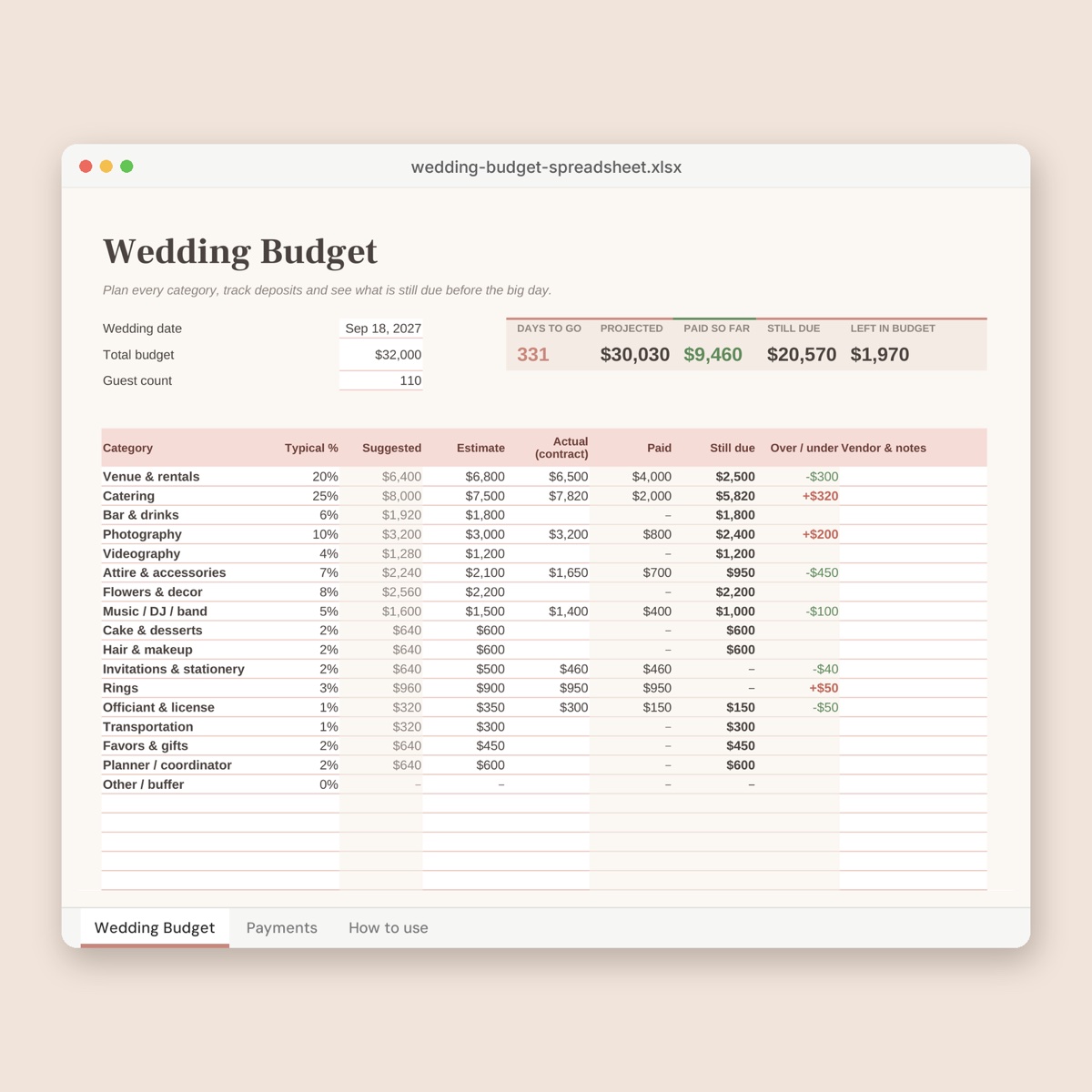
Test the file on the venue’s own screen and player, ideally a week ahead. Check that it plays from USB, that sound comes through their speakers, and that dark photos survive the projector; raise Brightness slightly on those if not. Bring the MP4 on two USB sticks plus a laptop or phone, name the file clearly, and give one person, not the couple or closest family, the job of pressing play. If you’re tracking costs, a projector or AV fee belongs in the wedding budget spreadsheet.
Common mistakes
- Collecting first, timing later. Fix the length and photo budget before anyone sends files.
- A different transition on every photo. It pulls attention from faces.
- Captions sized for a laptop. Stand at the back of the room during the test.
- Ending on the auto fade instead of a phrase. Adjust the photo count, or end the song on a phrase with Trim Audio.
- Keeping the only copy in the browser. Keep the original photos and the exported MP4 somewhere safe.
- Skipping permission. For memorials especially, ask close family before including private or hospital photos.
FAQ
How many photos do I need for a five-minute slideshow?
Use BPM ÷ 8 per minute. At 80 BPM that’s 10 a minute, about 50 photos; at 120 BPM it’s 15 a minute, which can feel quick, so hold some photos for four bars.
Can I mix in short video clips?
Yes. Put them on the Video track between photos. If a clip has speech, split the music clip there and lower its Volume for those seconds.
Can I use NiftyShelf music at the venue and post the video online?
Yes. Every track is free for personal and commercial use. If you post the video, add the credit line NiftyCut shows at export.
Are my family photos uploaded anywhere?
No. Converting, cropping, editing and exporting all happen in your browser, so the photos stay on your device.
What if the venue only has a 4:3 projector?
Export in 16:9 anyway; it plays with black bars above and below. Keep captions away from the edges.