The first week of a term is when the small paperwork decisions get made, and then you live with them for months. Which attendance sheet, where the lesson plans live, what the fast finishers do, what a substitute finds on your desk. Getting them right once saves hours.
This guide walks through a complete, free toolkit for one class: the templates to print, the browser tools to keep open, how to assemble a sub folder, and how to copy a class set without draining the ink budget. It finishes with the 25-minute Monday routine that ties it together.
What you’ll need
- A class list (first names are enough for most of what follows)
- A few templates from NiftyShelf templates, all free, most with Letter and A4 versions
- A computer with a browser. Our PDF tools work on your device, nothing is uploaded
- A clipboard, a hanging file or binder for the sub folder, and some cardstock
1. Attendance: paper sheet, spreadsheet, or both
Most schools have an official system, so the question is what you keep for yourself and for the days it fails.
Paper is fastest at the door and works when the network doesn’t. The Class Attendance Sheet has a monthly 31-day register with P/A/T/E totals and a Mon–Fri weekly version, 25 student rows each. The class, teacher and month boxes at the top are form fields, so you can type them with Fill PDF Form before printing. Write the student names once by hand, then photocopy that master for every month. You never rewrite the roster, and the names line up month to month.
A spreadsheet wins when you need numbers. The 2027 Attendance Tracker is an Excel file with twelve month tabs already dated for 2027 and weekends shaded. Pick a one-letter code from a dropdown each day and it counts each code and works out each person’s attendance rate, with a year summary tab. Ignore the codes you don’t need.
What works for many teachers: paper on the clipboard during the day, five minutes on Friday copying the week into the spreadsheet. Before a parent meeting, print only the summary tab.
2. Plan the week in one file
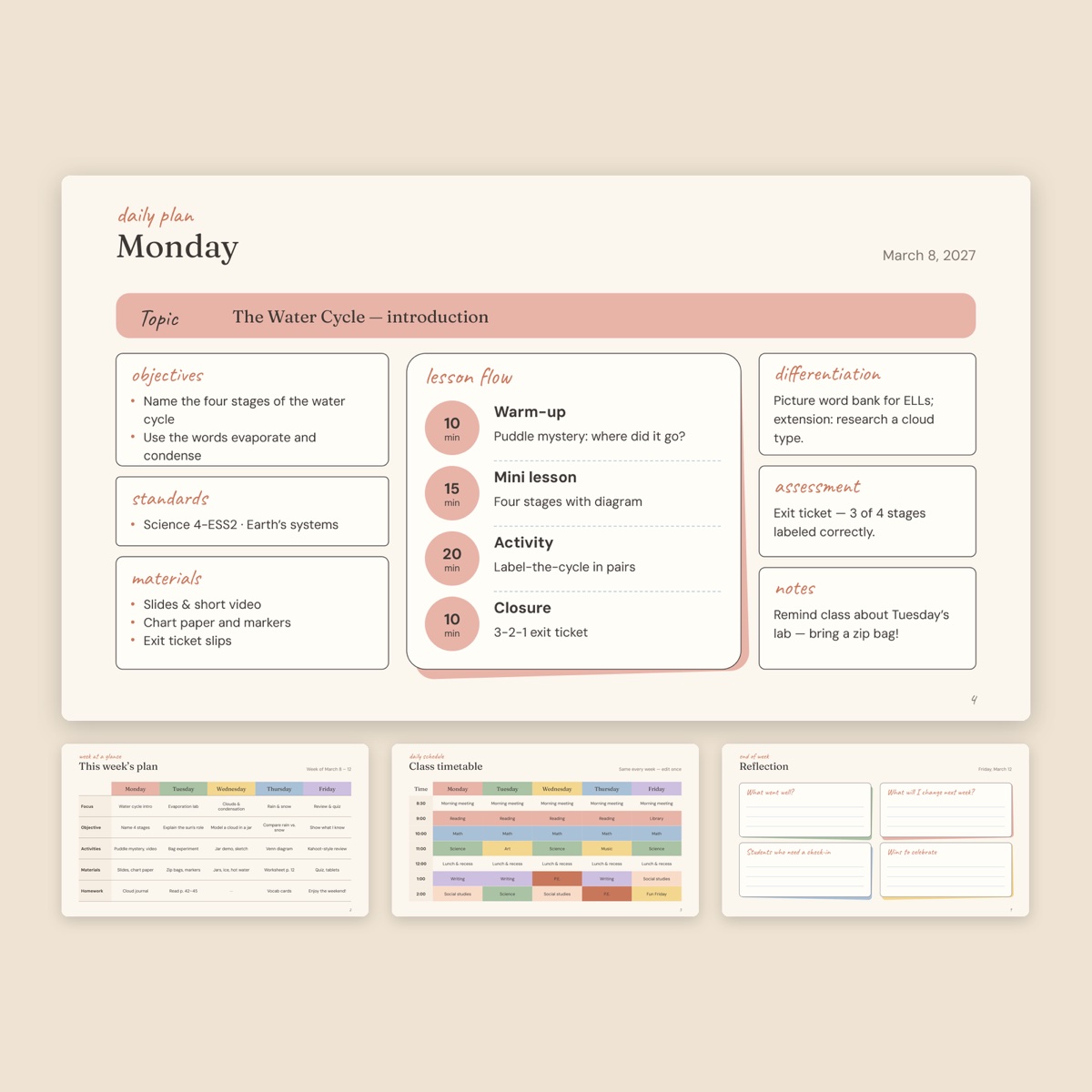
The Weekly Lesson Plan is a PowerPoint file that also opens in Google Slides. It has a week-at-a-glance grid, a color-coded timetable, one daily page per weekday (objectives, standards, materials, lesson flow, differentiation, assessment) and a Friday reflection slide. Monday comes filled in as an example: match its level of detail, then delete the hints. Make a copy of the whole file each week so last term’s plans stay intact.
Two companions:
- Class Schedule Template: a pastel timetable of periods by weekdays, filled and blank. Print the blank one for the wall and the sub folder.
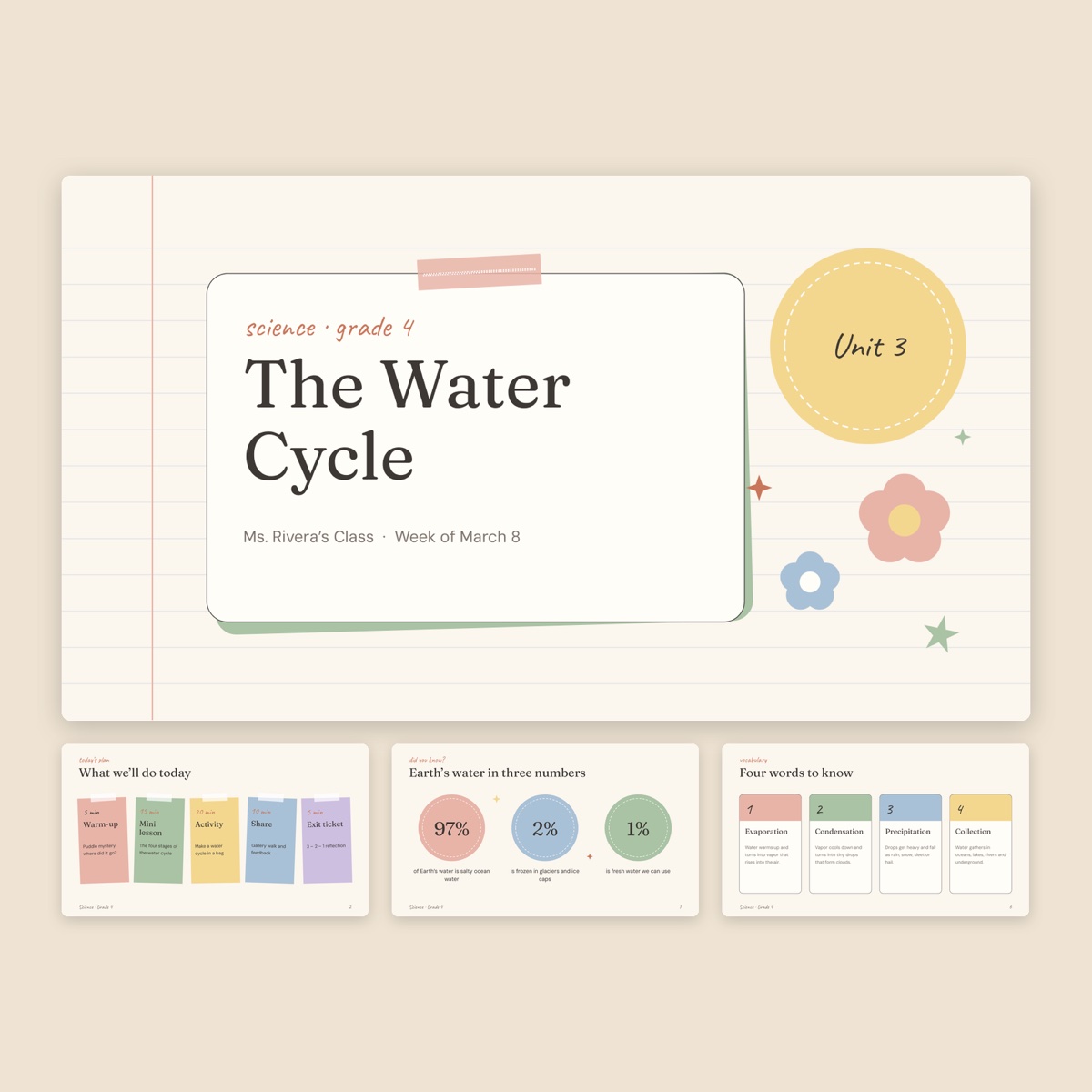
- Little Notebook Lesson Slides: a 16-slide deck for presenting the lesson itself, with learning goals, vocabulary cards, a Venn diagram, a rubric and a 3-2-1 exit ticket. Keep the exit ticket as your daily closing slide.
3. Build a paper bank
Running out of the right paper mid-lesson is a classic small disaster. Print a stack of each and keep it in labeled trays.
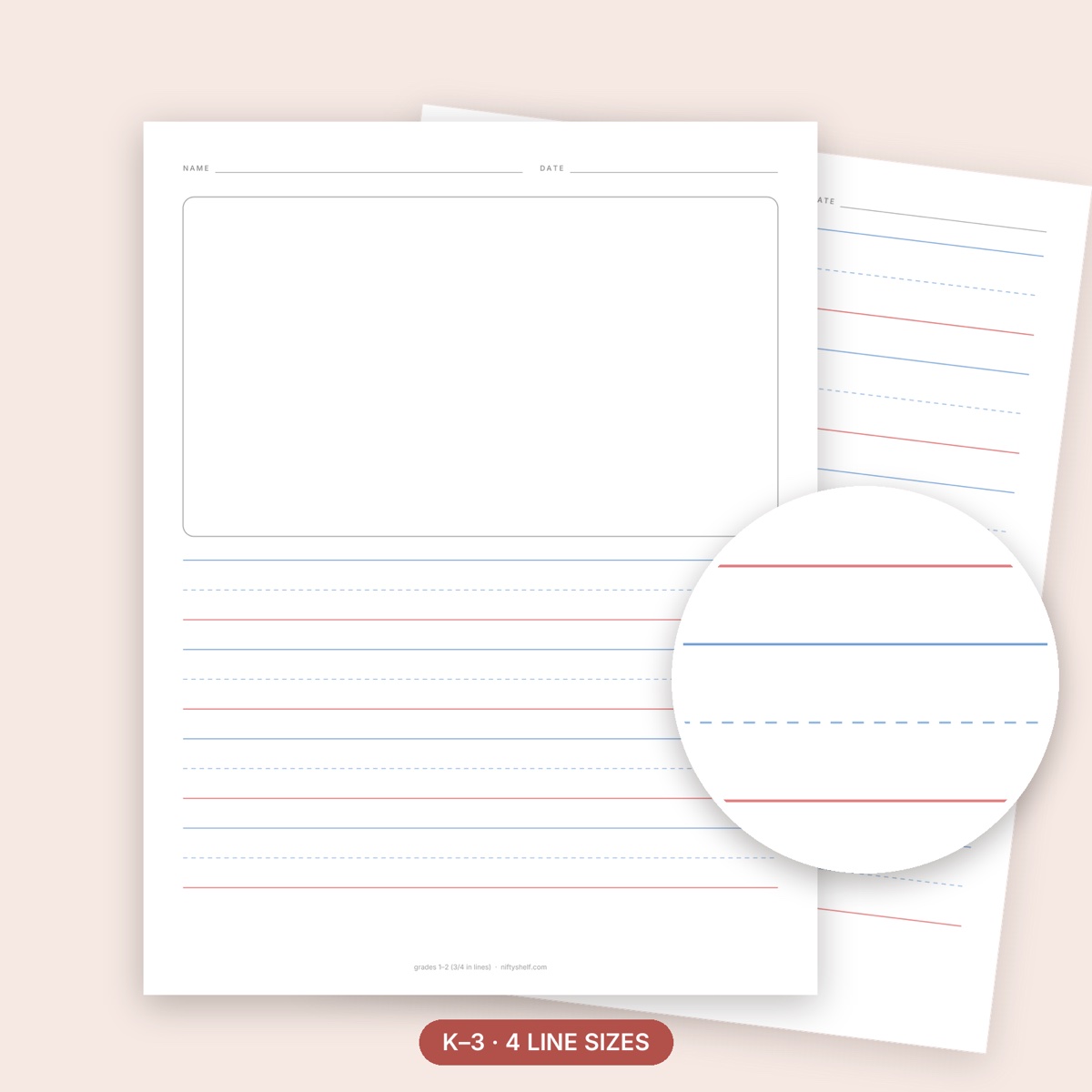
- Handwriting Practice Paper: dashed-midline paper in four line heights, 1 in for kindergarten down to 1/2 in around grade 3, plus story paper with a picture box. Move a child down one size only once their letters sit inside the lines consistently.
- Wide Ruled Paper for younger writers and College Ruled Paper for older ones. Both include a name/class/date header version; use it for anything you collect, so unnamed work stops appearing.
- Cornell Notes Template for upper grades learning to take notes.
Print all ruled paper at 100%. “Fit to page” quietly shrinks the line spacing, and a child who writes large will feel it.
4. An early-finisher folder
Every class has students who finish ten minutes early. A labeled folder they can help themselves to keeps them busy without you stopping the room. Start with the Back to School Word Search: two 15×15 puzzles about supplies and the classroom, with answer keys at the back. Hand out the first and keep the second in the folder.
For age-by-age puzzle picks, reusable sleeved sheets and a points system, see our screen-free printable activities guide.
5. Bingo for review days
Bingo turns ten minutes of review into something students ask for.
- Sight Word Bingo Cards: 30 different cards using 44 high-frequency words, two cards per page, with a caller checklist and calling slips. Print on cardstock and laminate once; they last the year.
- Blank Bingo Card Template: empty 5×5 grids plus a 75-line call list, for any subject. Write 24 vocabulary words, number them on the call list, and have each student copy the words into the grid in their own order so no two cards match.
To call, use Random Number Generator set to your range with repeats off, and tick each number on the call list. A claimed bingo takes seconds to check.
6. Certificates and reward charts
The Certificate of Achievement has four editable designs: classic gold border, modern navy, a kids’ “Super Star Award” and a certificate of completion. For an end-of-unit set, duplicate the slide once per student, type the names, export everything as one PDF and print the whole batch on cardstock. On A4 paper, choose “Fit to page” so the border stays centered.
The Super Star Reward Chart tracks up to five goals across a week, and its 30-step “road to my reward” page works nicely as a whole-class goal on the board: one step colored for every morning the class is seated by the bell.
7. Random picks and timers in the room
- Spin the Wheel: type the class list once, one name per line, and spin for who answers, who goes first or which group presents. Turn on “Remove winner after each spin” and everyone gets a turn before anyone repeats. The list is saved in that browser only, so on a shared computer use first names or seat numbers.
- Random Number Generator: if students have roster numbers, pick several numbers at once with no repeats to form groups.
- Online Stopwatch & Timer: presets from 1 to 60 minutes. It beeps and flashes the tab title when time is up, and keeps accurate time even if you switch to your slides.
If you also teach online, our live stream and online class toolkit covers sharing timers and pickers on screen.
8. Make a sub folder before you need it
The morning you’re sick is the worst time to write plans. Build the folder in week one and refresh it monthly:
- A copy of the attendance master with names already written.
- The blank class schedule, filled in by hand, with lunch and pick-up times.
- One printed daily page from the weekly plan, written generic enough to work any day.
- An emergency activity per subject: a word search, a bingo set, a pad of lined paper with a writing prompt.
- Routines that matter: who has allergies, who leaves early, how the reward chart works.
- A small QR code made with QR Code Generator linking to the current week’s plans if your school shares files online. It never expires, and the substitute scans it instead of typing a long link.
9. Print a class set economically
- One file, one job. Put the day’s sheets into Merge PDF in teaching order and print a single packet. Use Split PDF to cut answer keys out first.
- Grayscale. Colorful templates cost real ink. Grayscale PDF converts a file to grayscale or high-contrast black and white; 150 dpi is plenty for worksheets.
- Count before copying. 25 students and two bingo cards per page means 13 pages, not 25.
- Test one page. Check the scale and margins before running thirty copies.
- Print one, copy many. Print a clean master, then use the school copier for the rest.
10. A sample Monday-morning routine
| Time | Task |
|---|---|
| 0–5 min | Open this week’s lesson plan copy; check Monday’s page |
| 5–10 min | Merge and print the week’s worksheets as one packet |
| 10–15 min | Load the class list into the wheel; set the first timer |
| 15–20 min | Refill the early-finisher folder and paper trays |
| 20–25 min | Clipboard with the attendance sheet; glance at the sub folder |
Common mistakes
- Rewriting student names on every attendance sheet instead of copying a master
- Printing ruled or handwriting paper with “Fit to page” on
- Handing out answer keys stapled to the worksheets
- Leaving the sub folder empty until the day it’s needed
- Printing a full class set before testing one page
FAQ
Can I photocopy these templates for my whole class?
Yes. They’re free for personal and classroom use, and you can print as many copies as you need. You just can’t resell or re-upload the files themselves.
Do I need special software for the editable templates?
The slide templates are PowerPoint files that also open in Google Slides. The attendance tracker is an Excel file and opens in common spreadsheet apps. Printables are PDFs.
Is it safe to type student names into the wheel?
The list is stored only in the browser you’re using and nothing is uploaded. On a shared classroom computer, first names or seat numbers are the sensible choice.
Which attendance option should I choose?
Paper if you need speed and a backup; the spreadsheet if you report rates. Many teachers keep both and copy the paper into the spreadsheet once a week.